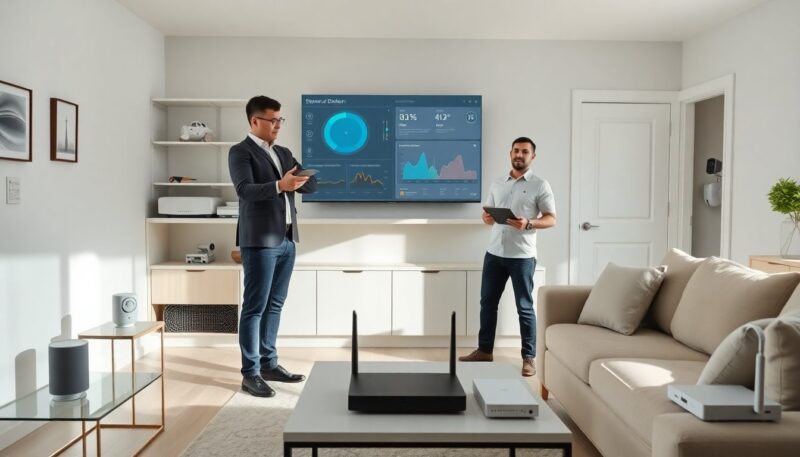
Zap-Internet.com smart home helps homeowners connect devices, control routines, and secure networks. The guide explains basic setup, device compatibility, features, and security steps. It shows clear steps users can follow. It keeps instructions short and practical. It prepares homeowners to use Zap-Internet smart home reliably and safely.
Key Takeaways
- Zap-Internet.com smart home integrates routers, cloud services, and a device app to control lights, locks, cameras, thermostats, and speakers through a single platform.
- It supports Wi-Fi, Zigbee, Z-Wave, and Matter devices, and scales easily for both small apartments and large homes while allowing remote scheduling and energy tracking.
- Setting up Zap-Internet smart home requires registering the router, creating an app account, using secure passwords, and enabling two-factor authentication for safety.
- Homeowners can automate routines like morning light and thermostat adjustments, away modes locking doors, and energy-saving scenes with multi-device control.
- Security best practices include changing default passwords, enabling WPA3, separating guest networks, limiting cloud sharing, and regularly updating firmware.
- Troubleshoot common issues by relocating devices closer to the router, checking for interference, rebooting devices after updates, and using wired backhaul for critical devices.
What Is Zap-Internet Smart Home And How It Fits Your Home
Zap-Internet.com smart home combines a router, cloud services, and a device app. It lets homeowners control lights, locks, cameras, thermostats, and speakers. It supports common smart standards and home Wi-Fi. It uses a central app to manage devices and automations. It integrates with voice assistants and many third-party brands. It fits small apartments and larger houses. It scales as homeowners add devices. It offers settings for schedules, remote control, and simple energy tracking.
Getting Started: Compatible Devices, Installation, And Setup
Zap-Internet smart home lists compatible device types on its site. It supports Wi-Fi cameras, Zigbee lights, Z‑Wave locks, and Matter devices. It recommends firmware updates for all accessories. It asks homeowners to register the router and create an account in the Zap app. It prompts for a secure admin password and two-factor authentication. It shows device pairing steps and network allocation for guest devices. It warns against using default passwords or open guest networks.
Key Features, Automations, And Routines To Try First
Zap-Internet smart home provides timed schedules, presence triggers, and scene control. Homeowners can create a morning routine that turns on lights and adjusts the thermostat. They can set an away mode that locks doors and arms cameras. They can create energy-saver scenes that dim lights and pause nonessential plugs. They can link motion sensors to lights for quick automation. They can build multi-device scenes and save them for one-tap use. The app shows energy use and automation history.
Security, Privacy, And Network Best Practices For Zap-Internet Devices
Zap-Internet smart home requires strong passwords and two-factor authentication. Homeowners should change default router and device passwords immediately. They should separate guest devices on a different VLAN or SSID. They should enable WPA3 where available and update firmware regularly. They should disable unused services like UPnP if not required. They should limit cloud sharing and review device permissions in the app. They should keep camera access to named accounts and use local storage where possible.
Troubleshooting Common Issues And Performance Optimization Tips
Zap-Internet smart home may show device dropouts due to distance or interference. Homeowners should move devices closer to the router or add a mesh node. They should check channel congestion and switch channels if interference appears. They should reboot the router and affected devices after firmware updates. They should verify device firmware and app versions when a device stops responding. They should use wired backhaul for performance-sensitive devices. They should contact Zap support with logs if issues persist.