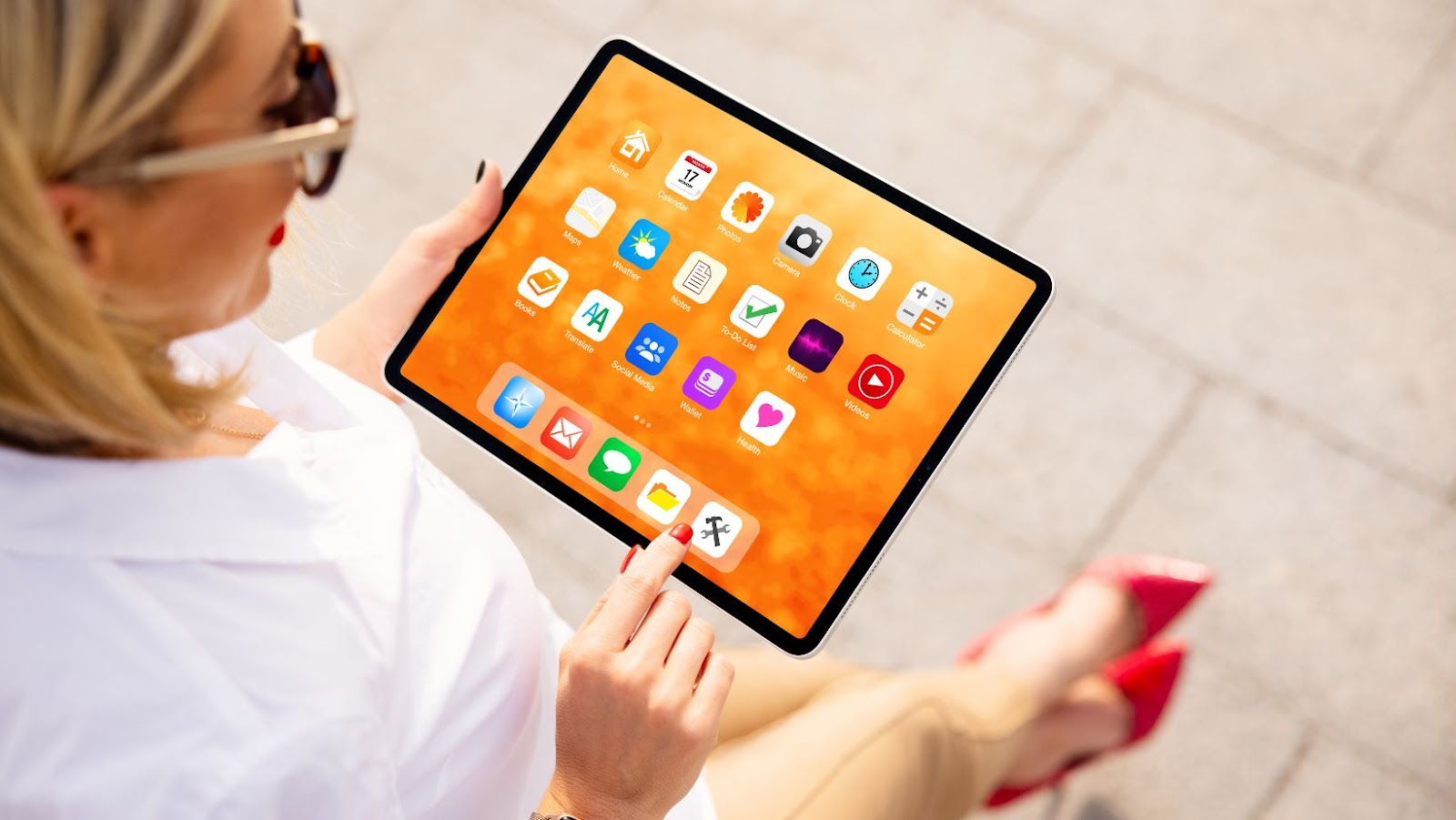
Your home screen is the first thing you see when you turn on your device, and it’s where you go to find your apps and widgets. To make it easy to find what you’re looking for, you can add, move, or delete shortcuts and widgets.
App shortcuts let you quickly open a specific app from your home screen. To add an app shortcut:
1. Touch and hold any empty space on your home screen.
2. Tap Widgets.
3. Touch and hold an app shortcut, then drag it to where you want it on your home screen.
4. To add a widget, touch and hold an empty space on your home screen, tap Widgets, touch and hold a widget, then drag it to where you want it on your home screen.
5. To delete a shortcut or widget, touch and hold it, then drag it to the Trash can icon at the top of the screen.
how to unlock home screen
If you have a security lock, you’ll need to enter your PIN, pattern, or password.
1. Touch and hold any empty space on your home screen.
2. Tap Settings.
3. Tap Security & location. If you don’t see “Security,” tap Security & Screen Lock.
4. Enter your PIN, pattern, or password.
5. Tap Continue.
6. Tap the switch next to “Allow unlocked access to”:
7. If you have a lock screen, you can choose what information is shown and what actions are available. For example, you can turn off notifications or allow emergency calls.
8. When you’re finished, tap Done.
how to change your screen lock
1. Touch and hold any empty space on your home screen.
2. Tap Settings.
3. Tap Security & location. If you don’t see “Security,” tap Security & Screen Lock.
4. Under “Screen lock,” tap the current lock option (e.g., Pattern, PIN, Password, Fingerprint).
5. If you have a lock screen, you can choose what information is shown and what actions are available. For example, you can turn off notifications or allow emergency calls.
6. When you’re finished, tap Done.
how to add or change a lock screen shortcut
1. Touch and hold any empty space on your lock screen.
2. Tap the shortcut you want to change or add.
3. If you’re adding a shortcut, choose an app. If you’re changing a shortcut, touch and hold the icon, then drag it to where you want it.
4. When you’re finished, tap Done.
How to choose the right layout for your home screen
1. Touch and hold any empty space on your home screen.
2. Tap Home settings.
3. Tap Layout.
4. Tap a layout option:
5. To add an app shortcut, touch and hold an app, then drag it to the desired location on the home screen.
6. To add a widget, touch and hold a widget, then drag it to the desired location on the home screen.
7. When you’re finished, tap Done.
How to add or delete pages on your home screen
1. Touch and hold any empty space on your home screen.
2. Tap Home settings.
3. Tap Pages.
4. To add a page, tap Add page.
5. To delete a page, touch and hold the page, then drag it to the Remove icon at the top of the screen.
6. When you’re finished, tap Done.
How to rearrange items on your home screen
1. Touch and hold any empty space on your home screen.
2. Tap Home settings.
3. Tap Rearrange.
4. To move an item, touch and hold the item, then drag it to the desired location on the home screen.
5. To delete an item, touch and hold the item, then drag it to the Remove icon at the top of the screen.
6. When you’re finished, tap Done.