Skip to content
zap-internet

ZAP Internet

Immerse Yourself in Gaming, Embrace the Realm of Smart Homes, and Explore the Universe of Gadgets

Primary Menu
  • Home
  • Gadgets For Life
  • Gaming Corner
  • Smart Home & Internet
  • About Us
  • Contact Us
  • Home
  • Application Zone
  • Change the way Siri pronounces your name without jailbreaking, hacking or rooting

Change the way Siri pronounces your name without jailbreaking, hacking or rooting

Danilo Bianchi 2 min read

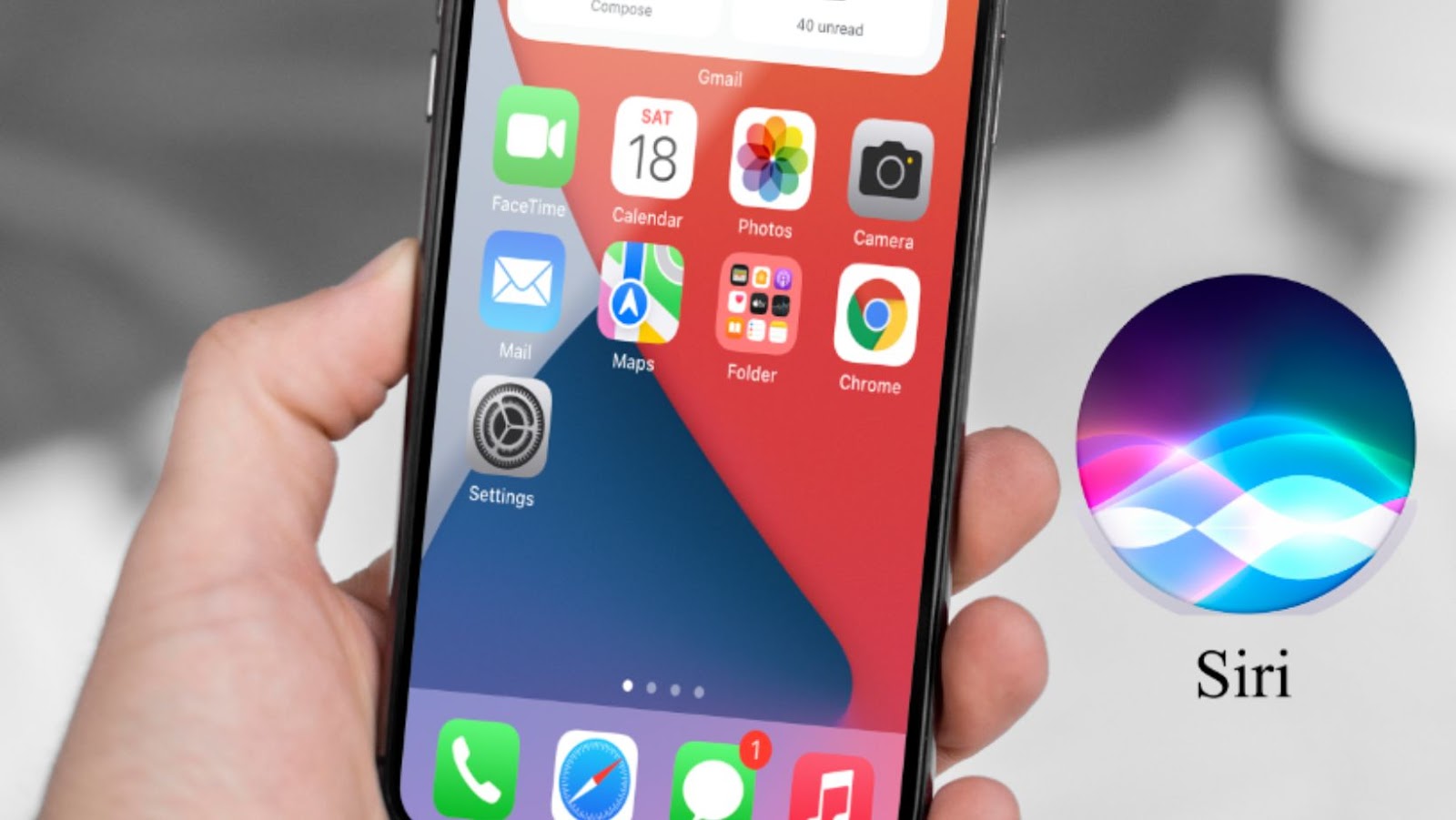
If you want to change the way Siri pronounces your name without jailbreaking, hacking or rooting your phone, there are a few things you can do. One is to use a different voice for Siri. You can find these in the settings app under “Siri voices.” Another option is to edit the contact information for yourself in the Contacts app. You can tap on the “Edit” button and then scroll down to the “Phonetic First Name” and “Phonetic Last Name” fields. Here you can enter the way you would like Siri to pronounce your name.

How to change your name on siri

If you have an iPhone, iPad, or iPod touch

  1. Go to Settings > Siri & Search. If you’re using iOS 11 or earlier, go to Settings > Siri.
  2. Tap the My Info card.
  3. Choose your contact information. You might need to sign in with your Apple ID.
  4. Update your first or last name, or phonetic first or last name. If you don’t see the option to edit your phonetic name, make sure that the language Siri uses is set to English (United States or United Kingdom).
  5. When you’re finished, tap Done.

Why you might want to change your name on Siri

There could be a few reasons you might want to use a different name with Siri. Maybe you go by a nickname and want Siri to call you by that instead of your given name. Or maybe you have a common name, and Siri has trouble pronouncing it the way you say it. Whatever the reason, changing your name in Siri settings is quick and easy to do.

How to use the new feature  in iOS 11 that lets you change Siri’s voice

In iOS 11, Siri got a new voice. And not just any voice: it sounds more natural and expressive, almost like a real person. If you don’t like the new voice, or if you think Siri sounds better in a male or female voice, you can change it back to the way it was in iOS 10. Here’s how:

  1. Open the Settings app on your iPhone or iPad.
  2. Tap Siri & Search. If you’re using iOS 10 or earlier, tap Siri.
  3. Tap Siri Voice.
  4. Choose the voice you want to use for Siri. Male or female voices are available in different dialects, such as American, British, or Australian.

How to choose a new name for Siri

You can also choose a new name for Siri. This is different from the way you pronounce your name, which we’ll get to in a moment. The new name you choose will be how Siri addresses you. So if you’ve always wanted Siri to call you “boss” or “mum,” now’s your chance. Here’s how:

  1. Open the Settings app on your iPhone or iPad.
  2. Tap Siri & Search. If you’re using iOS 10 or earlier, tap Siri.
  3. Tap About > Name.
  4. Enter the first name and last name you want Siri to use.

Continue Reading

Previous: Recover deleted drafts on Instagram
Next: Scam alert: how to avoid scams on apple pay

Tech Articles

Airpods: the perfect audio experience for any activity 1

Airpods: the perfect audio experience for any activity

Enable Themes on iMovie hearing exsolarwinds solarwinds 2

Enable Themes on iMovie

Emoji Cleanup and Removal for iPhone Users inside world wide consortiumlapowskyprotocol 3

Emoji Cleanup and Removal for iPhone Users

Take a video without a audio 4

Take a video without a audio

Why you should disable your iPhone hotspot 5

Why you should disable your iPhone hotspot

See who’s listening to your show on Spotify 6

See who’s listening to your show on Spotify

Related Stories

Zap-Internet.com Application Zone: How To Access, Apply, And Resolve Issues In 2026 zap-internet.com application zone
5 min read

Zap-Internet.com Application Zone: How To Access, Apply, And Resolve Issues In 2026

Win The Tundra Giveaway: How To Get And Use Zap Internet’s Mobile App (2026 Guide) zap internet mobile app tundra acquire giveaway
5 min read

Win The Tundra Giveaway: How To Get And Use Zap Internet’s Mobile App (2026 Guide)

Application Zone Zap Internet: What It Is, Why It Matters, And How To Set It Up (2026) application zone zap internet
4 min read

Application Zone Zap Internet: What It Is, Why It Matters, And How To Set It Up (2026)

Zap, The Internet, And Crypto Market Makers: How They Shape Liquidity And Prices In 2026 role zap internet crypto market maker
3 min read

Zap, The Internet, And Crypto Market Makers: How They Shape Liquidity And Prices In 2026

Application Zone Zap‑Internet: How To Access, Apply, And Troubleshoot in 2026 application zone zap-internet
5 min read

Application Zone Zap‑Internet: How To Access, Apply, And Troubleshoot in 2026

Inside TheGossipWire: What It Covers, How It Works, And How To Use It Safely (2026 Guide) thegossipwire
3 min read

Inside TheGossipWire: What It Covers, How It Works, And How To Use It Safely (2026 Guide)

zap-internet.com
4926 Solmolas Road
Telos, IL 72564
  • Home
  • Privacy Policy
  • Terms and Conditions
  • About Us
  • Contact Us
Zap-Internet.com © 2026 All rights reserved.